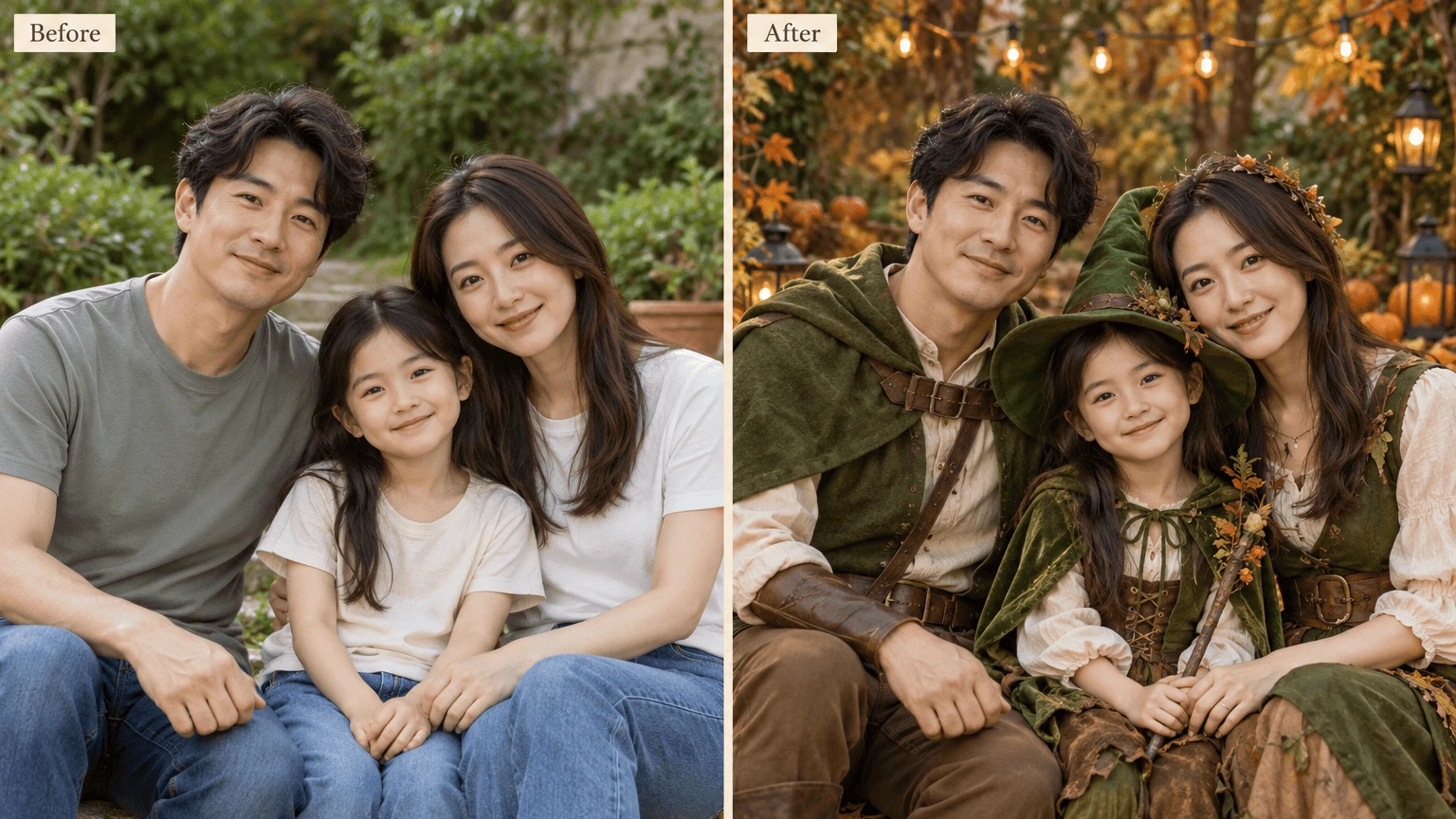
Instructions
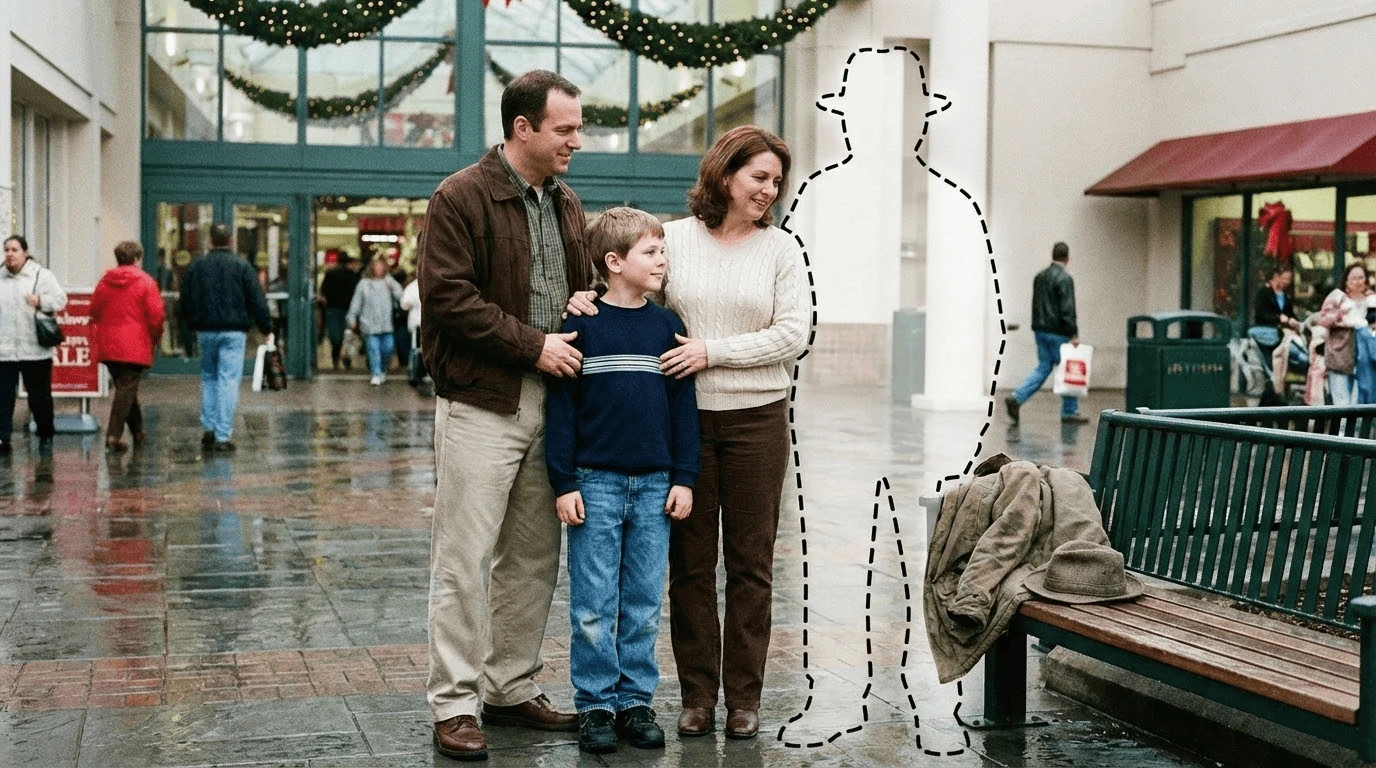
1 of 1Use Add Deceased Loved One to Photo to bring someone special into an existing family picture. Upload the group photo and one clear reference, choose their place, and create a personal keepsake.
Start with the family photograph you already treasure. The tool uses that picture as the base and your second photo as the reference for the person you want to add.
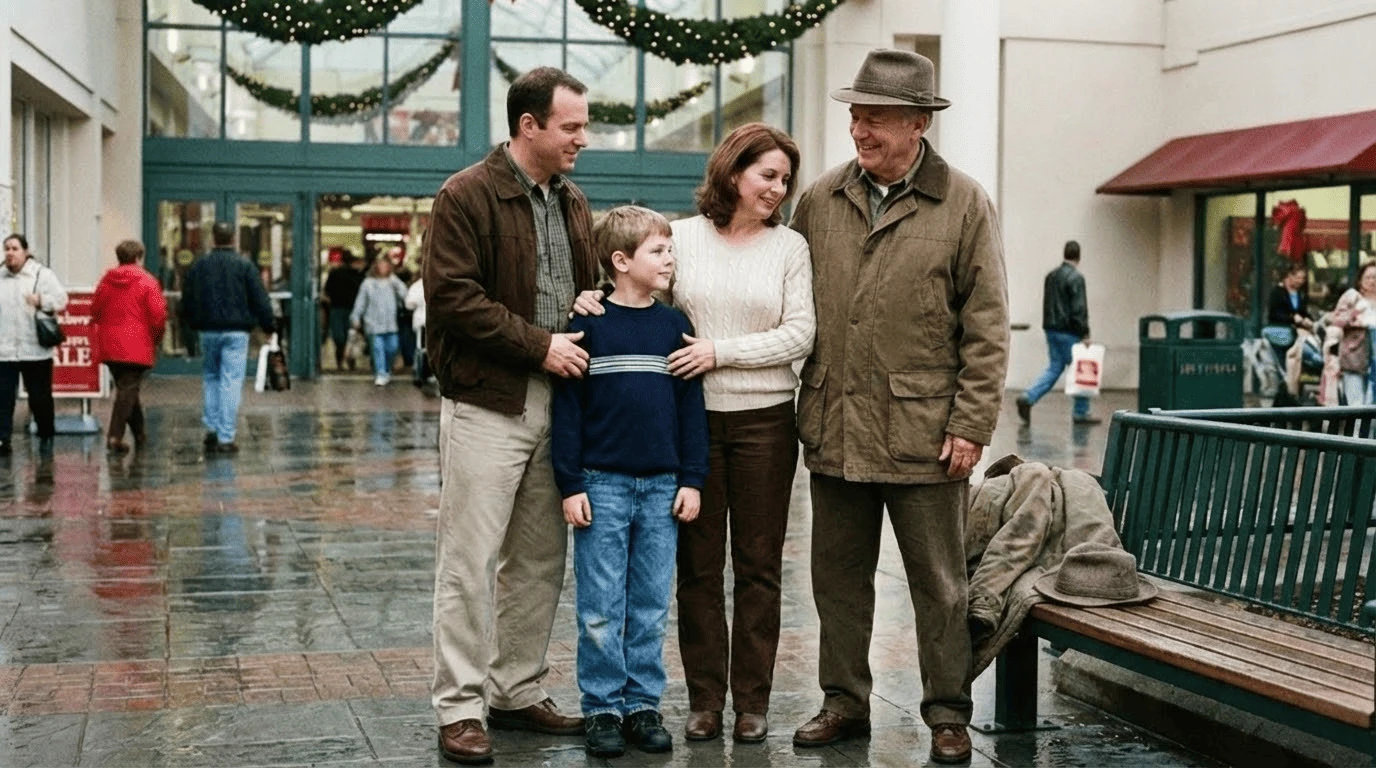
Add Deceased Loved One to Photo starts with your wedding, reunion or everyday family picture, keeping the original occasion central to the keepsake.
Choose a natural, left, right or center position, then explain a preferred relationship or arrangement in your own notes.
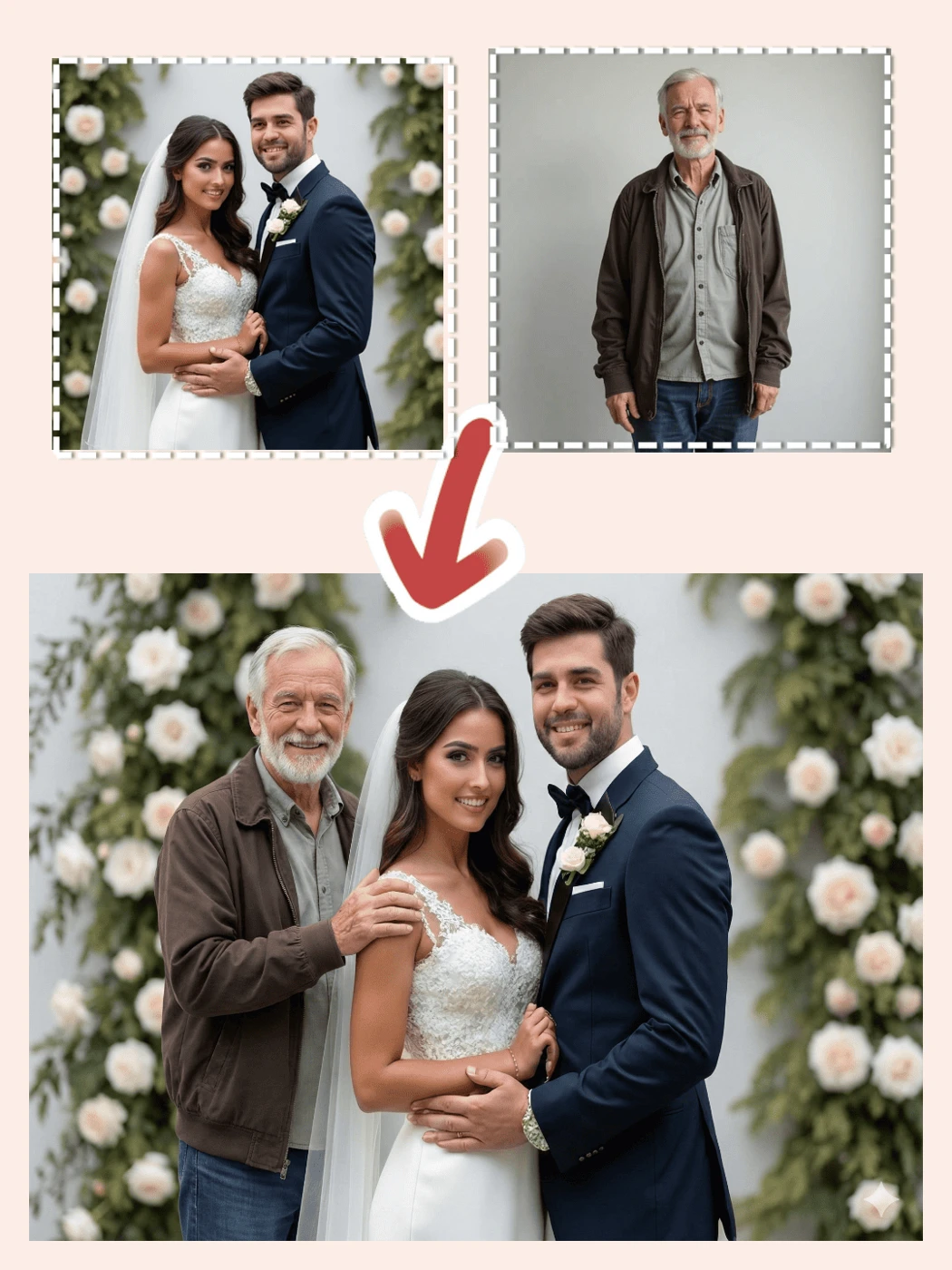
Add two editable lines after generation, so names, dates and a short message stay under your control without AI lettering.
With Add Deceased Loved One to Photo, download the original result or arrange an edited PNG for a frame, remembrance display or sharing with family.
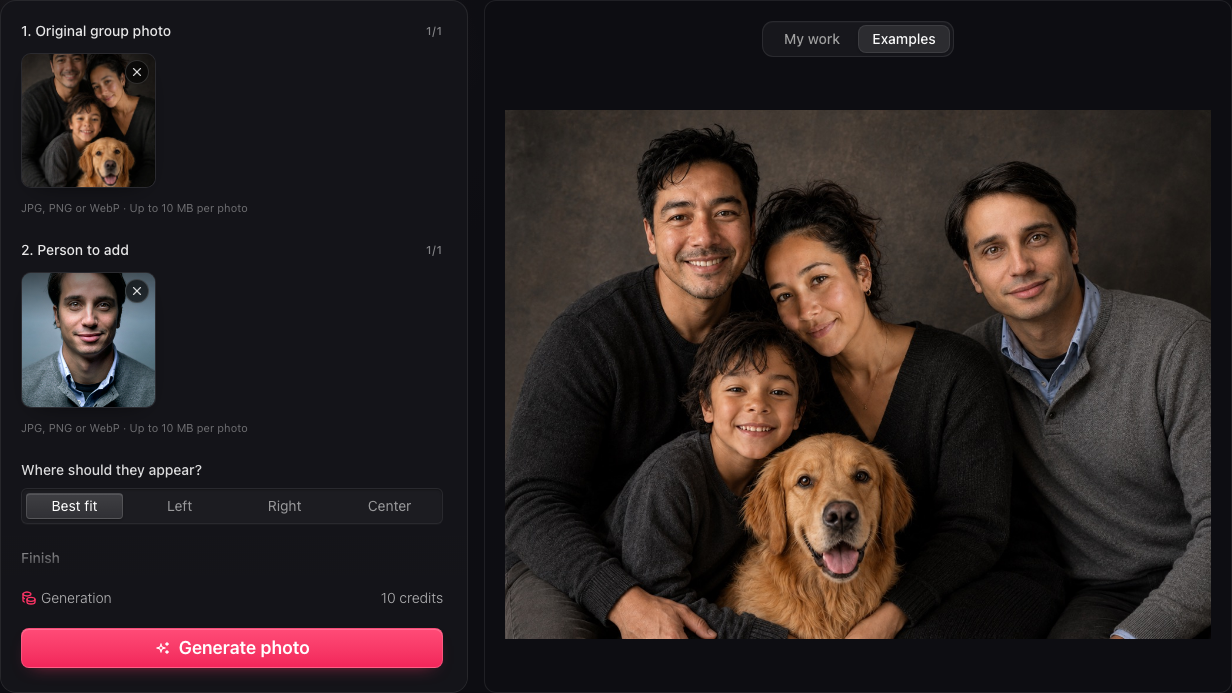
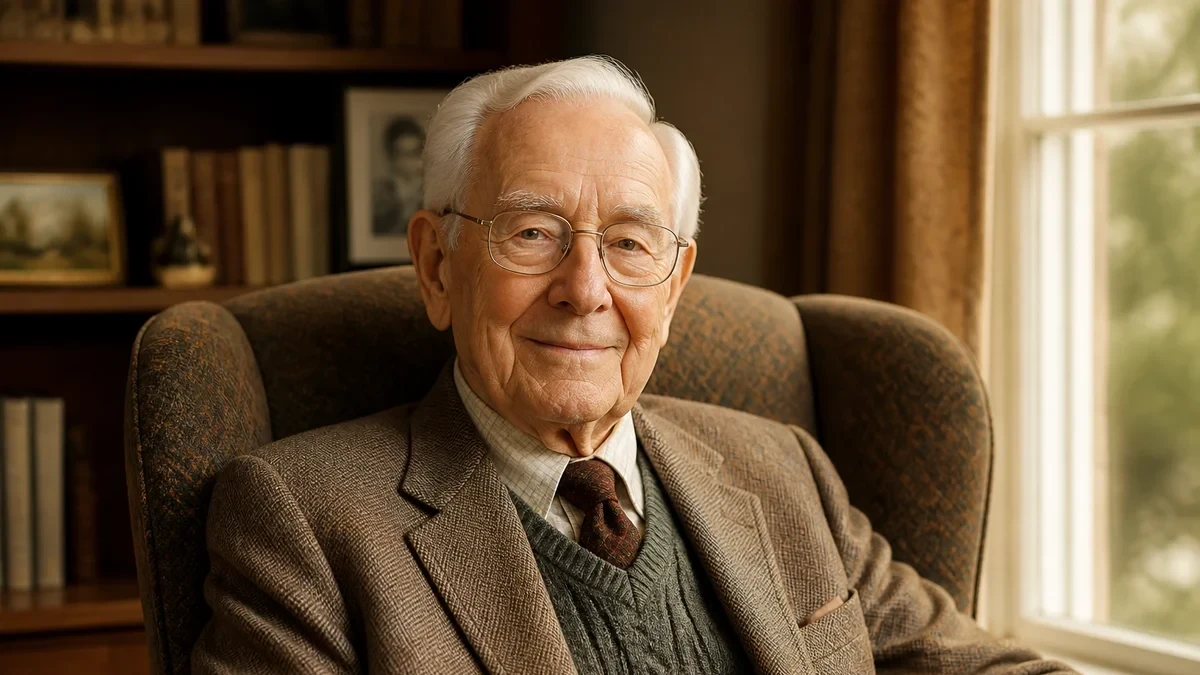
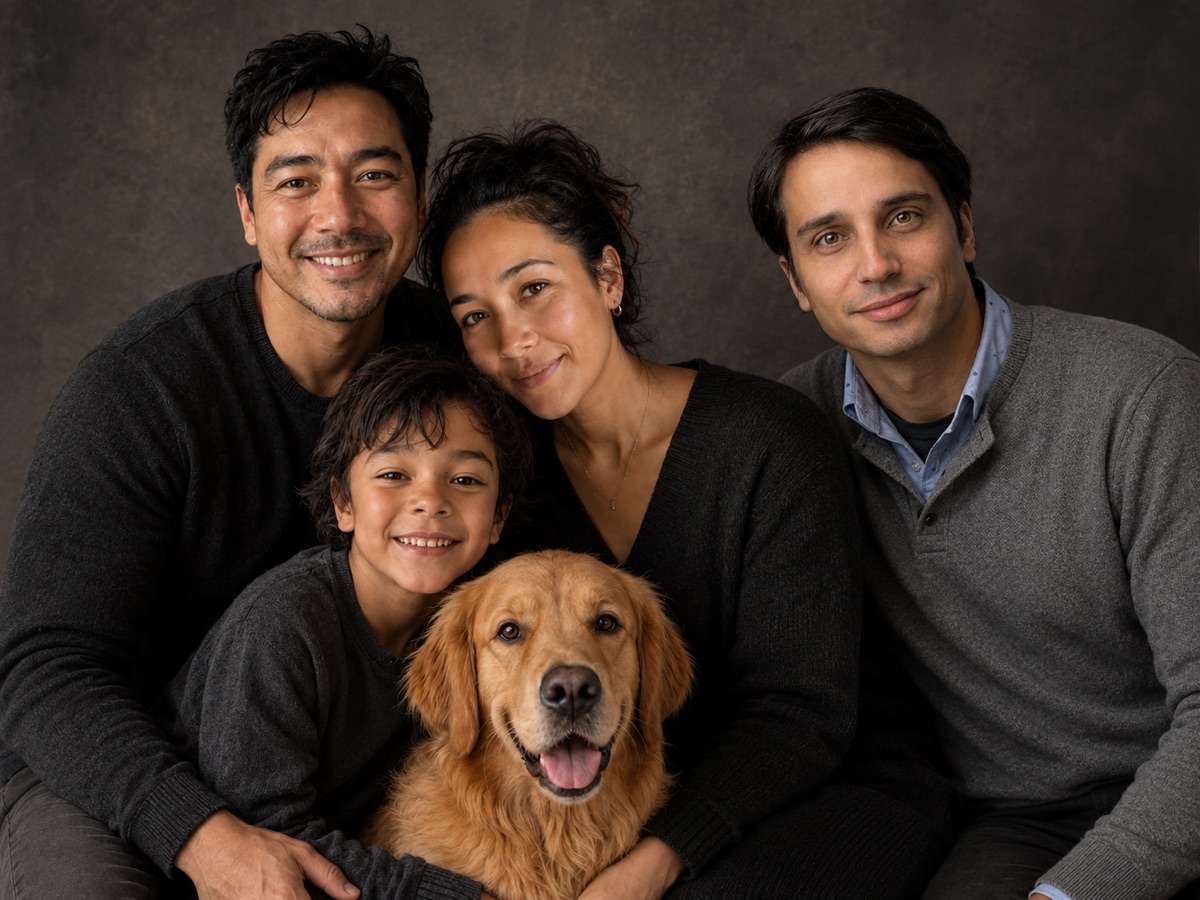
Choose a recognizable face with enough detail to show the person's age and features. A similar angle can help the combination feel more coherent. Add notes about placement or clothing when those details matter to the occasion.
Choose Your Photos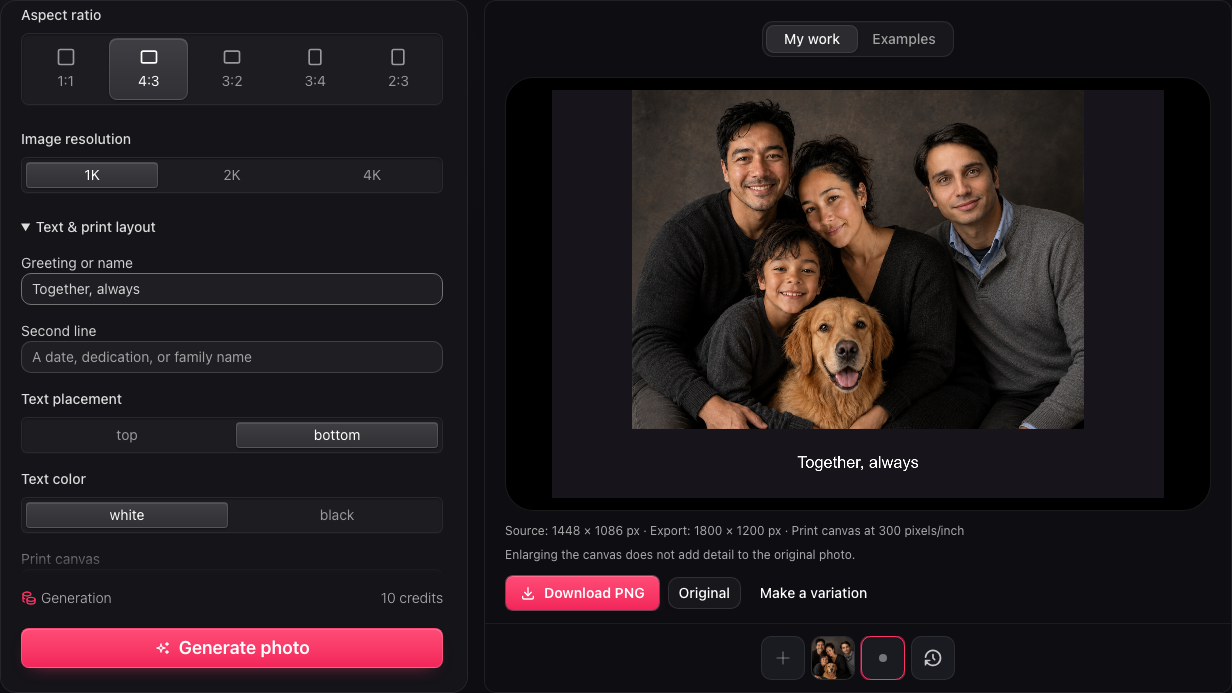
In Add Deceased Loved One to Photo, arrange your custom picture on a 6×4, 5×7, 8×10 or A4 canvas. Choose contain or cover, adjust your caption and inspect the preview before downloading a printable PNG.
Create Your KeepsakeAdd Deceased Loved One to Photo needs two images: your group picture first and the person's reference second. Use clear JPG, PNG or WebP files.
Choose placement, finish, aspect ratio and tier in Add Deceased Loved One to Photo. Add notes about the person's position, clothing or relationship to the group.
Check the faces and original scene, add your words, and download. Save the project explicitly if you want to return later.
You need exactly two images: the existing group photo and one reference of the person you want to add. Put the group photo first. Each file can be JPG, PNG or WebP and must be no larger than 10 MiB.
Add Deceased Loved One to Photo is instructed to keep the original people, clothing, expressions and background while adding your relative. Review every face and important detail before keeping the result; AI can change details, so an exact reconstruction is not guaranteed.
In Add Deceased Loved One to Photo, upload your late father's clear reference second and choose a space beside the family. To remember loved ones who have passed away, try a prompt such as “place my father beside me on the right, matching the family's lighting.”
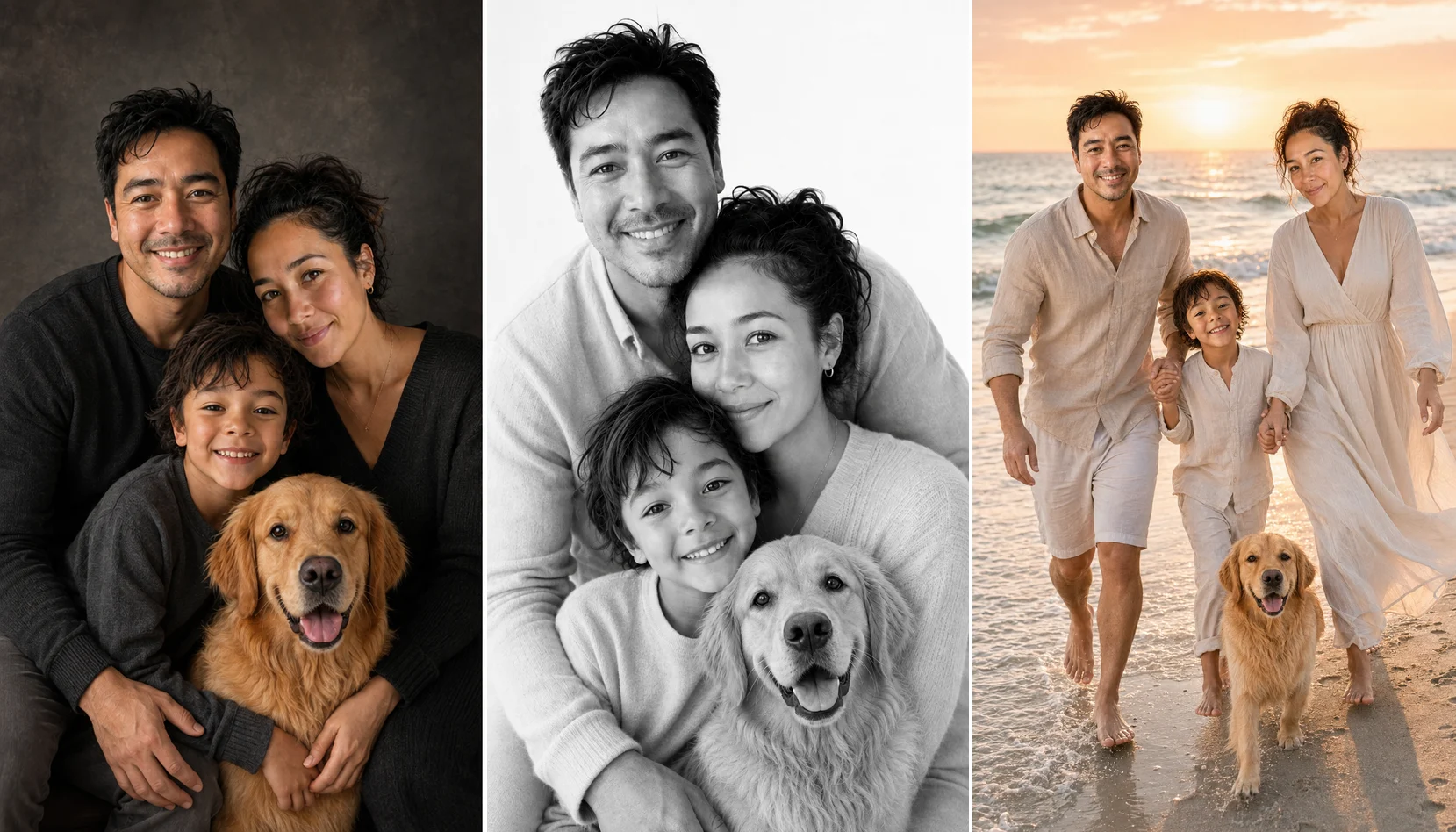
You can add one deceased or absent relative to an existing group photo per generation. To build a new portrait from separate family or pet photographs, use Family Photo Maker instead. It accepts two to eight references for that task.
For Add Deceased Loved One to Photo, choose a well lit reference with an unobstructed face. Avoid heavy blur, tiny faces or covered features. Consider whether the person's angle and age suit the group picture; a reference guides likeness without guaranteeing an exact match.
Yes. Registration includes a one time grant of 10 credits, enough for one generation. Each new result costs 10 credits at any available tier. Editing text, adjusting the print layout and downloading an existing result do not spend additional generation credits.
Add Deceased Loved One to Photo offers 1K, 2K and 4K generation tiers. Check the actual width and height shown with your result, then judge those source pixels at your intended print size. A tier name alone does not guarantee a particular pixel count.
Add Deceased Loved One to Photo keeps your caption and second line separate from the AI artwork. Enter the exact name, date or dedication, choose top or bottom placement and black or white lettering, then correct the words without generating another image.
Review faces, crop and displayed pixels at your intended print size. PNG export uses a 300 DPI canvas and may enlarge the source to fit. Extra export pixels and DPI metadata do not restore missing detail, so inspect the finished file before ordering prints.
Save your work in Add Deceased Loved One to Photo to keep both references, settings, text edits and the result in your account project. If saving fails, current inputs stay available to retry. Download important results too, because generated files have a limited lifetime.
References and generated results are private to your account within the service. The images are sent to AI service providers to carry out generation. Use photographs you are comfortable submitting for that processing, particularly when they include children or other family members.
Allow time to create the image, check the likeness and finish your text before you need the keepsake. Generation time varies with the request and service conditions. A variation creates a new image and uses another 10 credits; failed generations follow the credit return process.

Choose the family picture and the person you want beside you, then begin your personal keepsake with one free generation after registration.
Create Your Keepsake